




Banca personal en línea y banco móvil: transacciones
Guías sobre la banca en línea y la aplicación móvil
Preguntas frecuentes
Encuentra respuestas útiles a preguntas sobre la banca en línea, nuestra aplicación móvil y más aquí.
Zelle®
Envíe dinero directamente desde nuestra aplicación a sus amigos y familiares con Zelle®
Ver más
* Debes tener al menos 13 años de edad. Consulta los términos y las condiciones del producto.
Servicio al cliente
Asistencia para la banca en línea
(800) 551-6098
Transacciones
View your transactions and add transaction details.
Tu Panel de control te muestra las Transacciones más recientes en tus cuentas, con una vista combinada.
Para ver las Transactions (Transacciones) de una cuenta específica, haz clic en Account (Cuenta) desde el Panel de control, o en Accounts (Cuentas) desde el menú principal, y selecciona la cuenta correspondiente.
{beginAccordion}
Ver detalles de transacciones
Transactions will display either the merchant's logo or a general category icon. Select an individual transaction to view transaction details and images, if applicable. From Transaction details (see illustration below) you can see the date the purchase was made (A), the merchant's name (B), the location (C), and, if applicable the last 4 digits of the debit card that was used (D).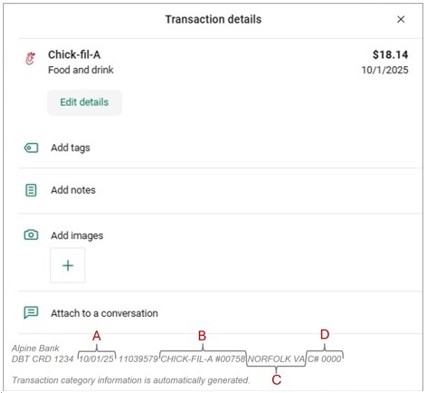
If you do not recognize a transaction, you may select Attach to a conversation and ask a question or list a concern, or you may call us at 800-551-6098.
Adding Tags, Notes, Images or Editing Details to a Transaction
From the Transaction details, once the transaction has posted to the account, you may Edit details, Add tags, Add notes, Add images to a transaction.
NOTE: Tags, Notes, Images and Edits cannot be added to transactions that are pending.
From the Transaction Details, you can click on Edit details.
Change the name of the merchant and/or select a different category, then, click Save.
NOTE: Changing the name of a merchant will not affect the name for past or future transactions. If needed, a new edit is required each time.
Tags are helpful for searching and identifying transactions; click Add Tags to add a tag to the transaction— i.e., Groceries, then, click Done.
NOTE: Once a tag is created, it cannot be edited or deleted. Si se necesitan cambios, se debe crear una nueva etiqueta.
Click on Add Notes to add a note to a transaction, i.e., an invoice number or ‘Lunch with Friends’. Ingresa la información, luego haz clic en Done (Listo).
Para agregarle una imagen a la transacción, por ejemplo, la foto del recibo, haz clic en + en Add Images (Agregar imágenes) o selecciona Attach image (Adjuntar imagen) en la aplicación móvil, luego selecciona la imagen que te gustaría agregar.